📲
Available now
Bugzila Car Play is ready to download from Google Play through the official app listing.
Google Play downloadBugzila Car Play by Bugzila Labs lets you listen to Local Music, explore Online Radio, search stations, save favorites, tune audio, cast to supported devices, and enjoy a clean experience that also works with Android Auto.
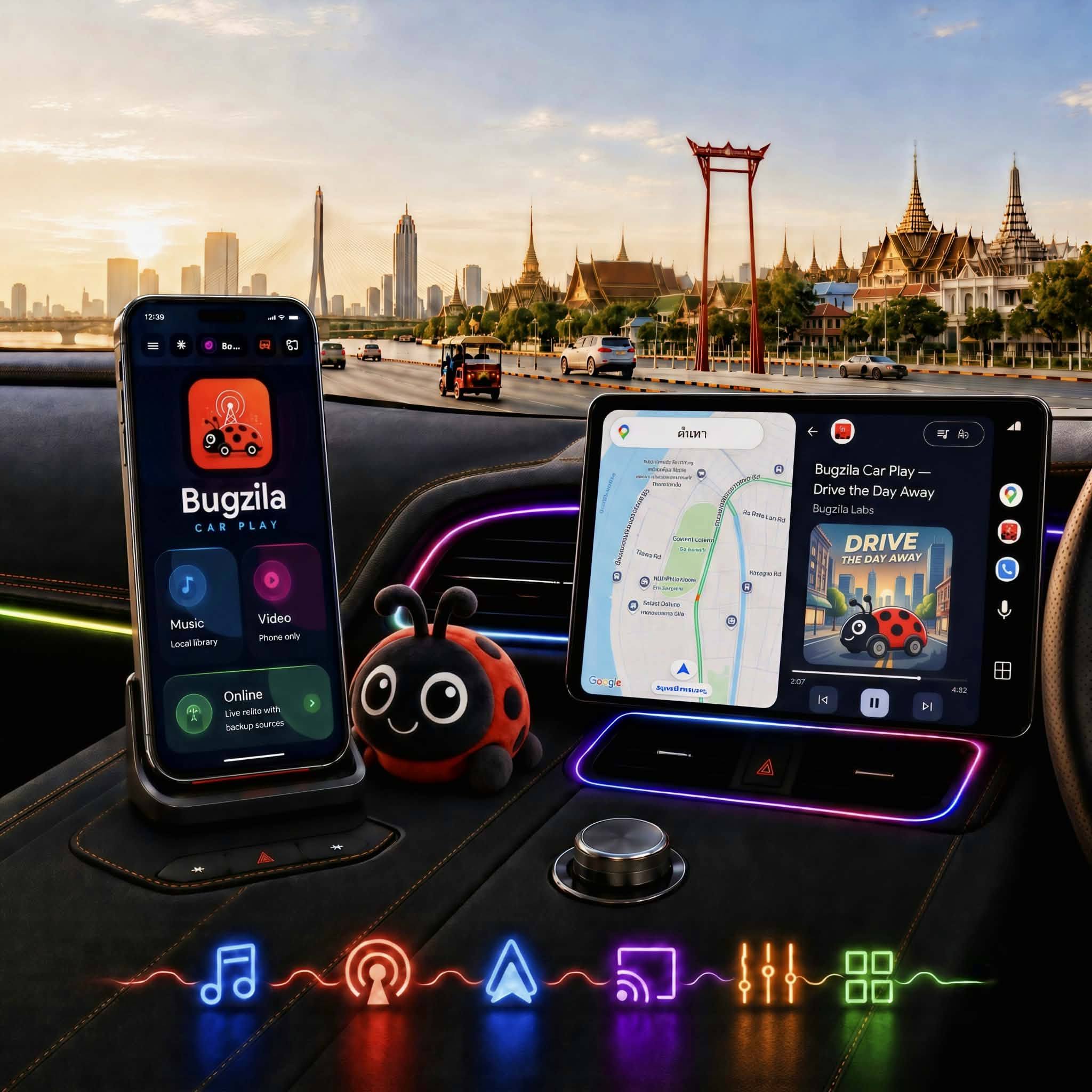
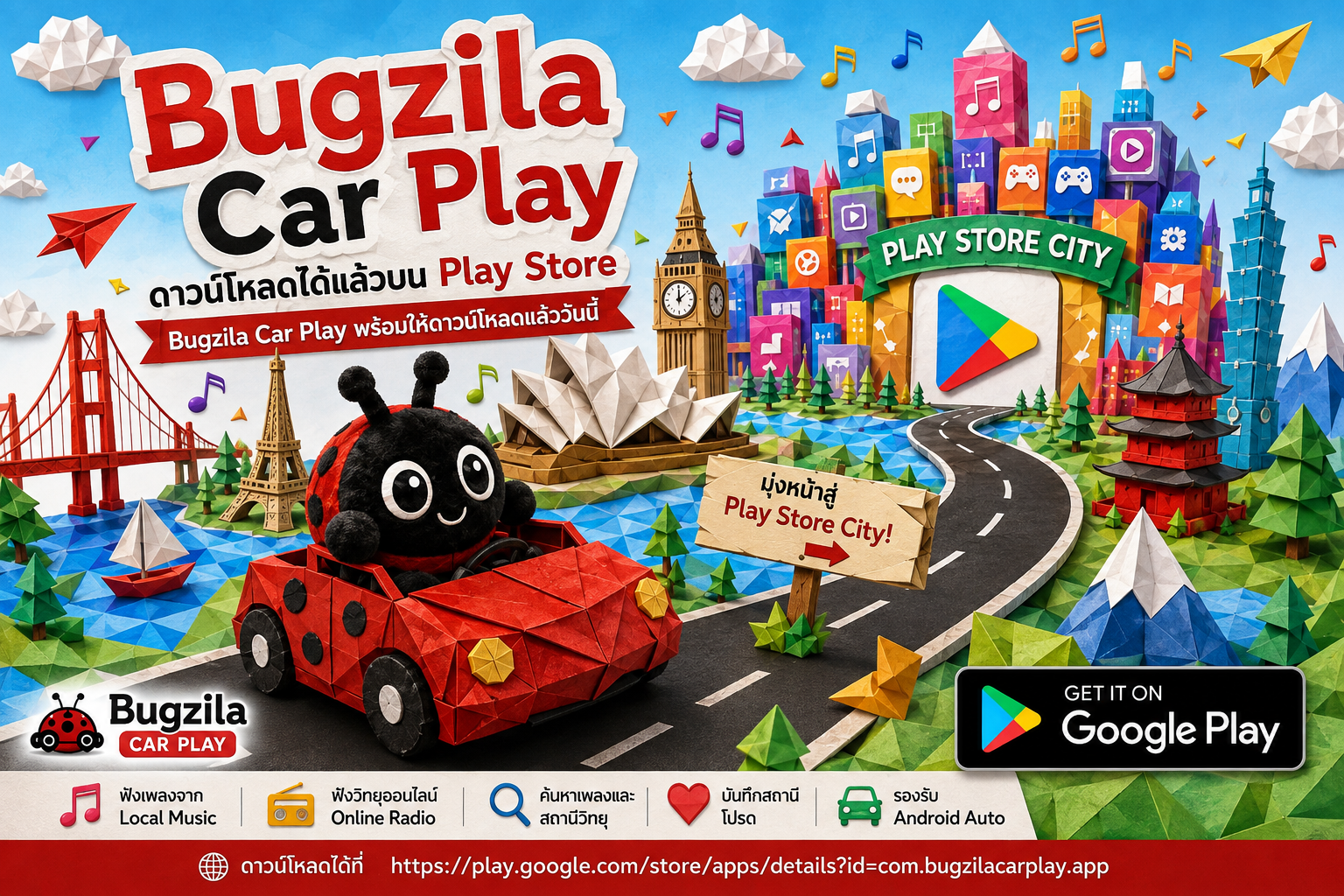
Everything important at a glance: where to download, who develops the app, and where to follow updates.
Bugzila Car Play is ready to download from Google Play through the official app listing.
Google Play downloadThe app is published by Bugzila Labs. Use the developer page to discover official releases and future updates.
Bugzila LabsFollow the Facebook page for announcements, news, and a simple channel for staying in touch with the team.
Official Facebook pageThe page now includes the feature explanation and example screens that users usually expect on a proper app landing page.
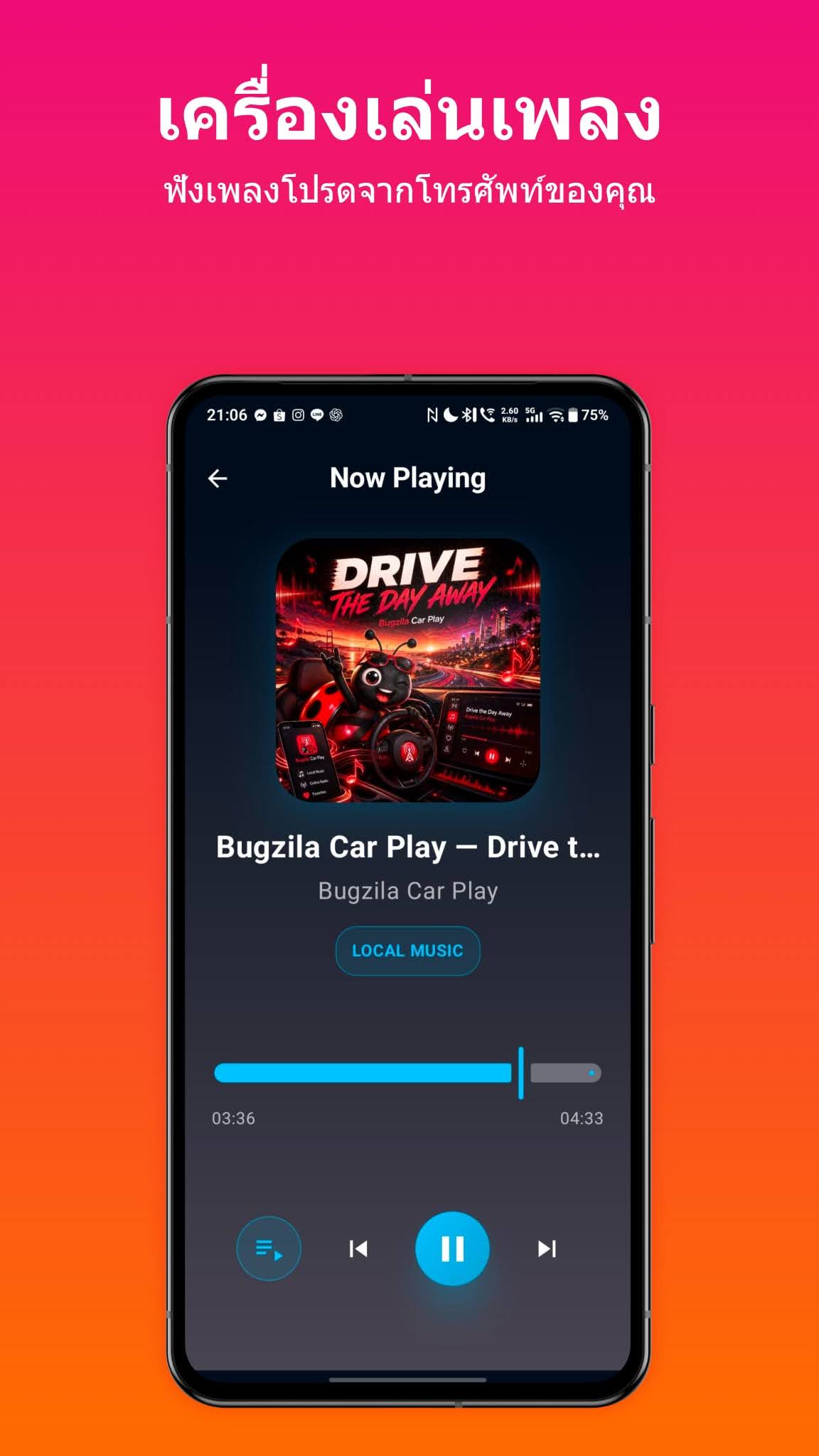
Play your favorite music from your phone with a clean player interface, large playback controls, and a design that is easy to read while driving.
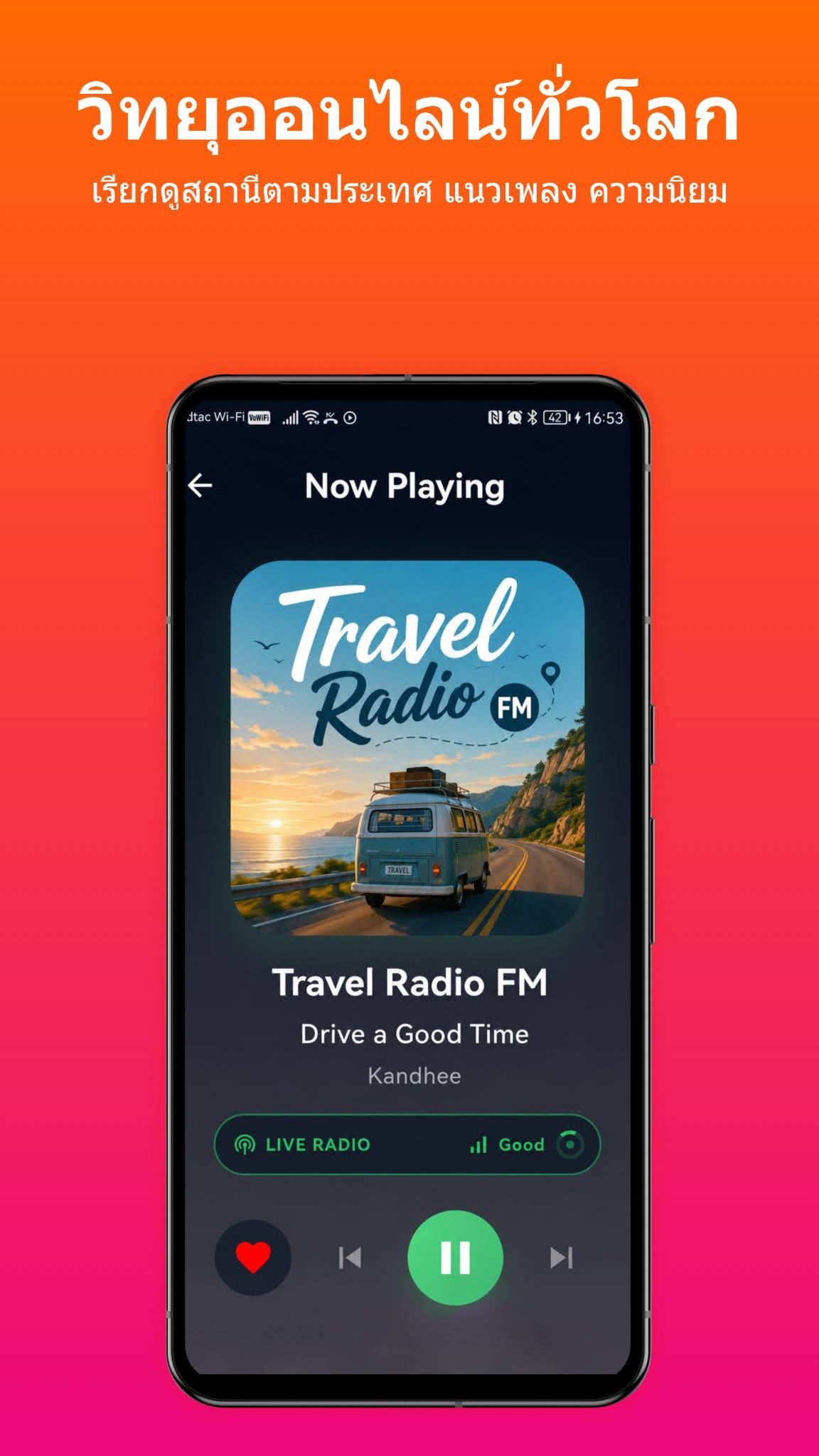
Browse and listen to internet radio from different countries, moods, and genres with a focused listening experience.
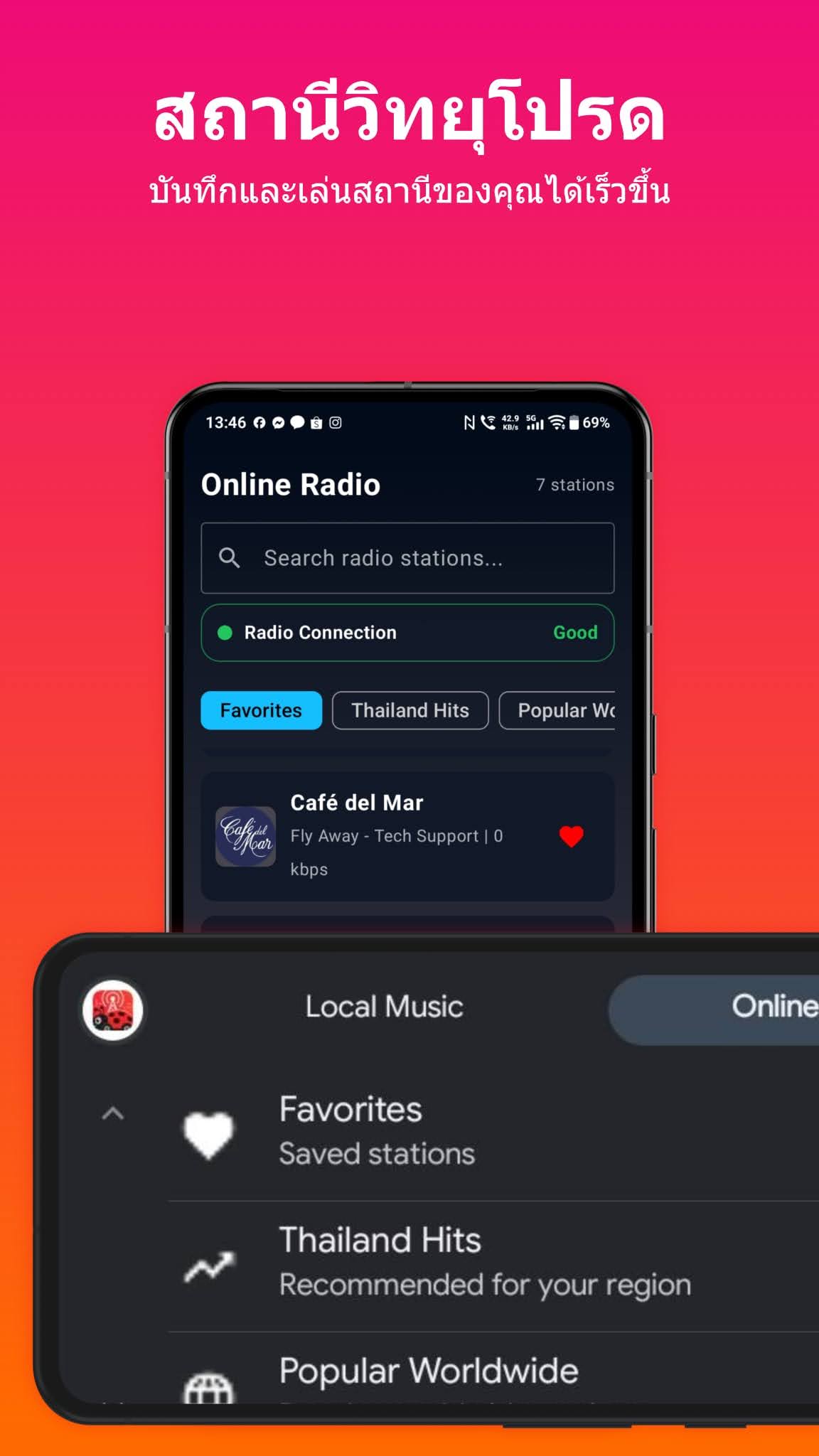
Save your favorite stations for quicker playback and make repeated listening easier both on the phone and in Android Auto style navigation.
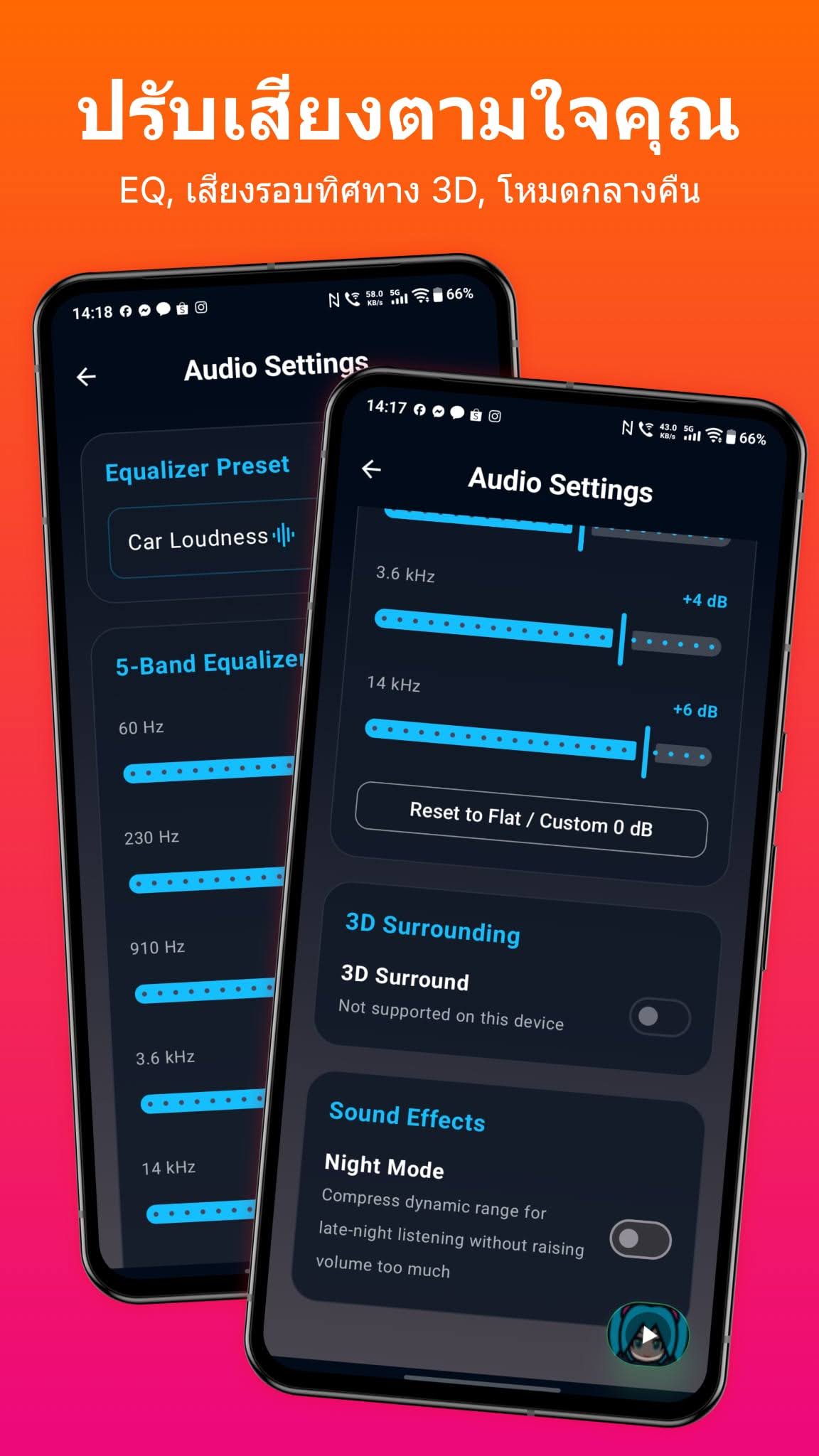
Adjust sound with EQ presets, a 5-band equalizer, 3D surround options where supported, and night mode for comfortable listening.
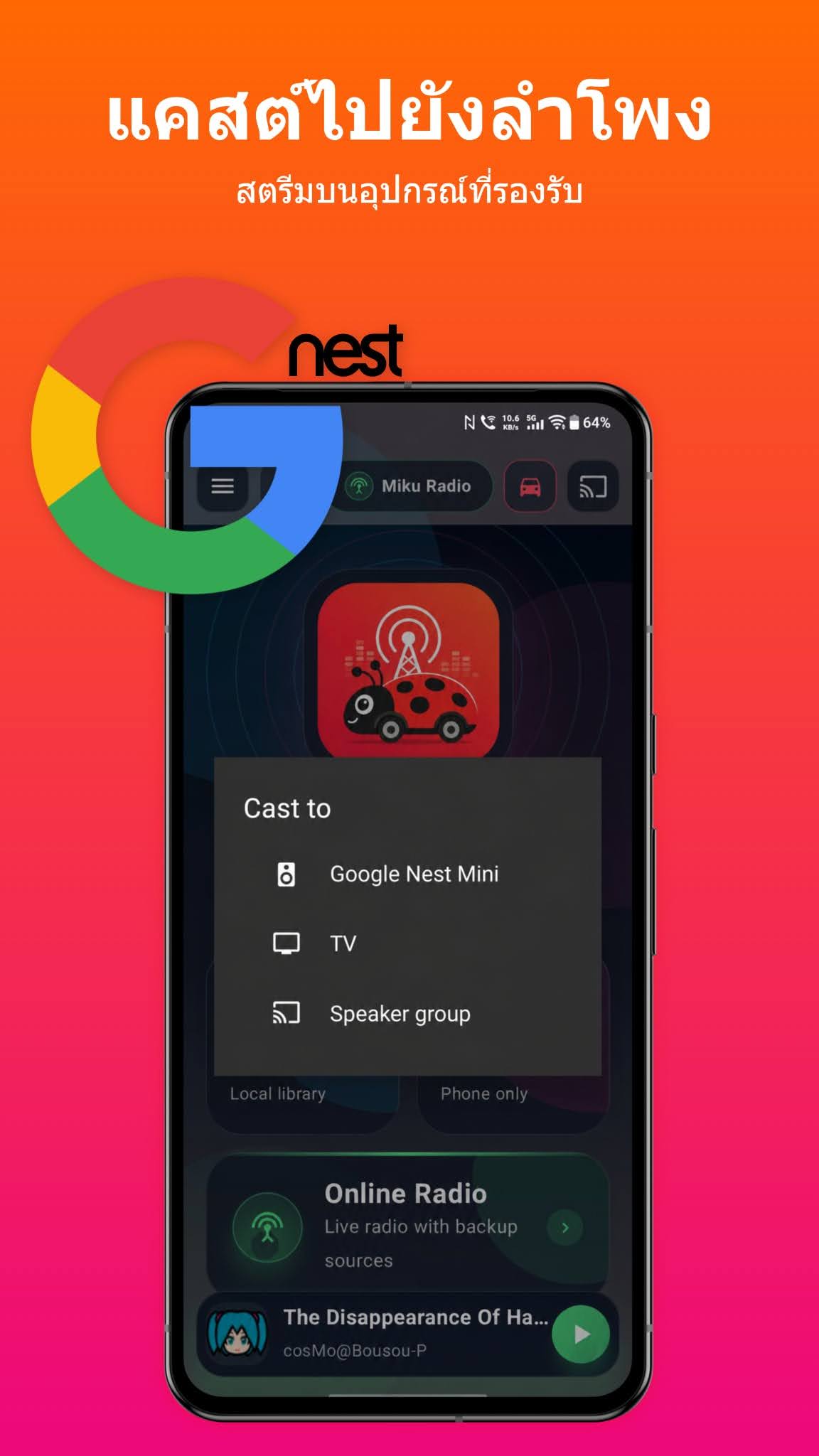
Cast audio to supported devices such as speakers, TVs, or groups, giving you more flexible playback beyond the phone itself.
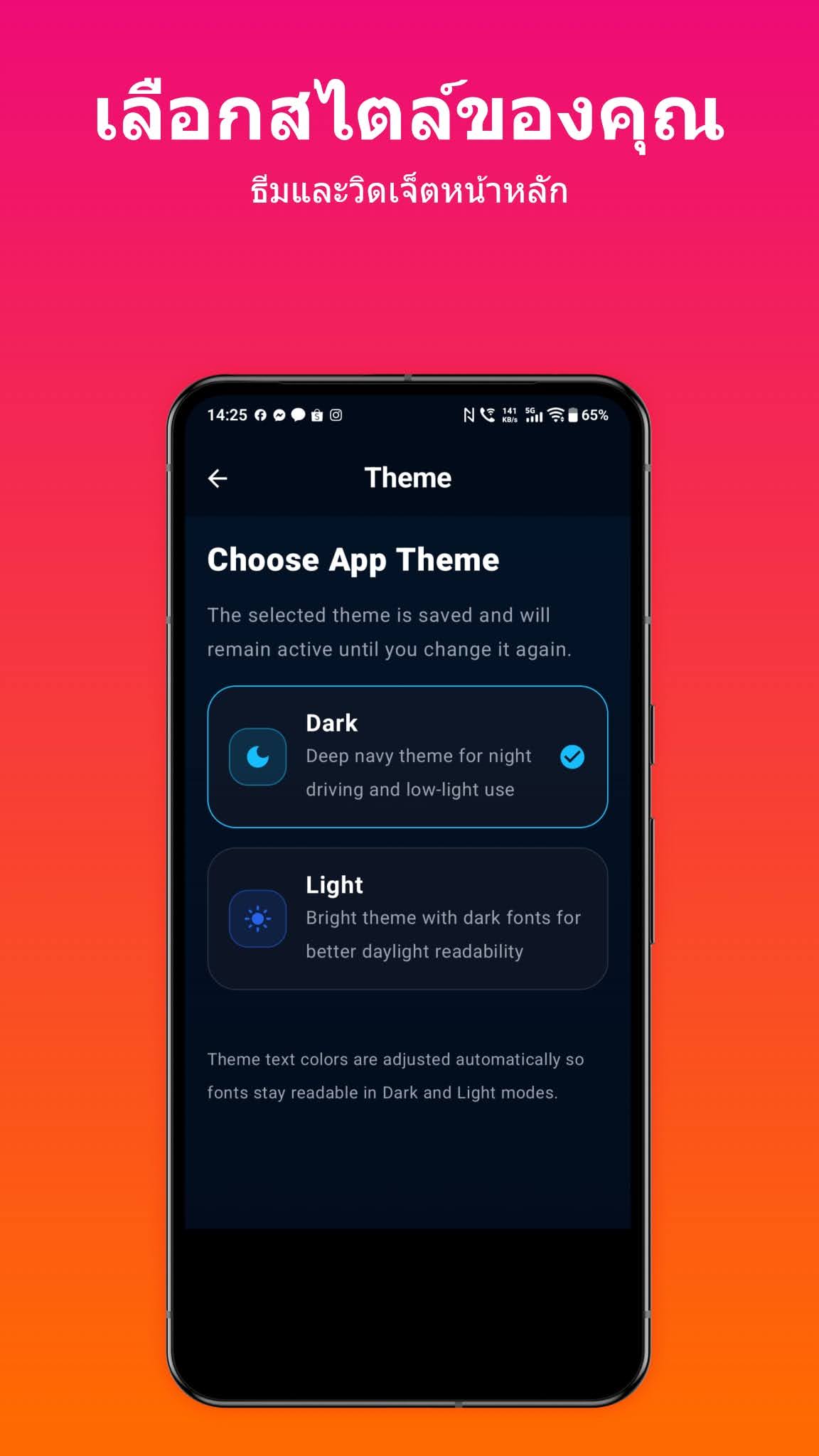
Choose between light and dark visual styles to match your preference and improve visibility across different times of day.
A complete GitHub Page for an app should do more than show a logo. It should clearly explain what the app does, where to download it, what the main features are, and how users can contact the developer.
This updated page includes bilingual support, direct Google Play access, feature descriptions, real usage examples, official links, and contact channels so new visitors can understand the app quickly.
Google Play package:
com.bugzilacarplay.app
These example screens help users understand the app experience before downloading.
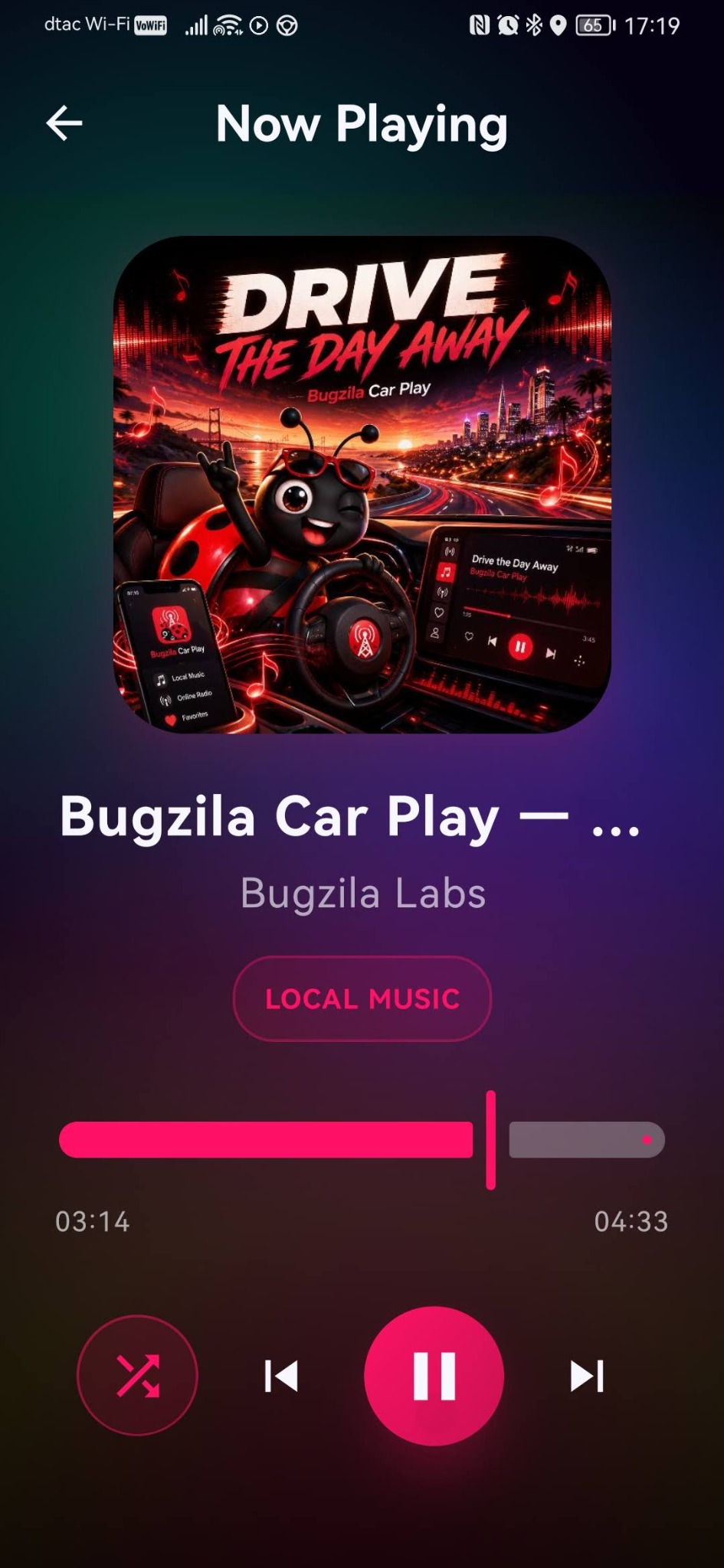
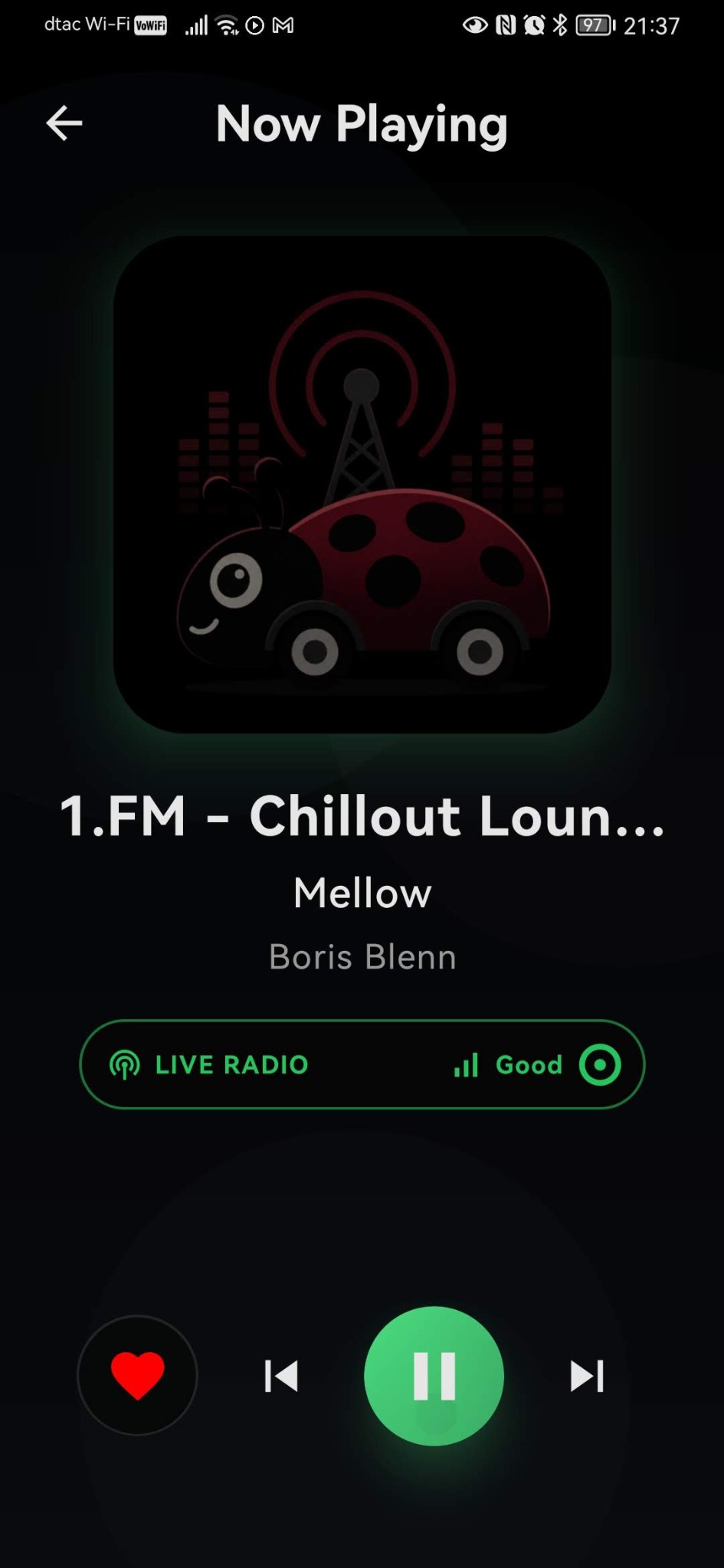
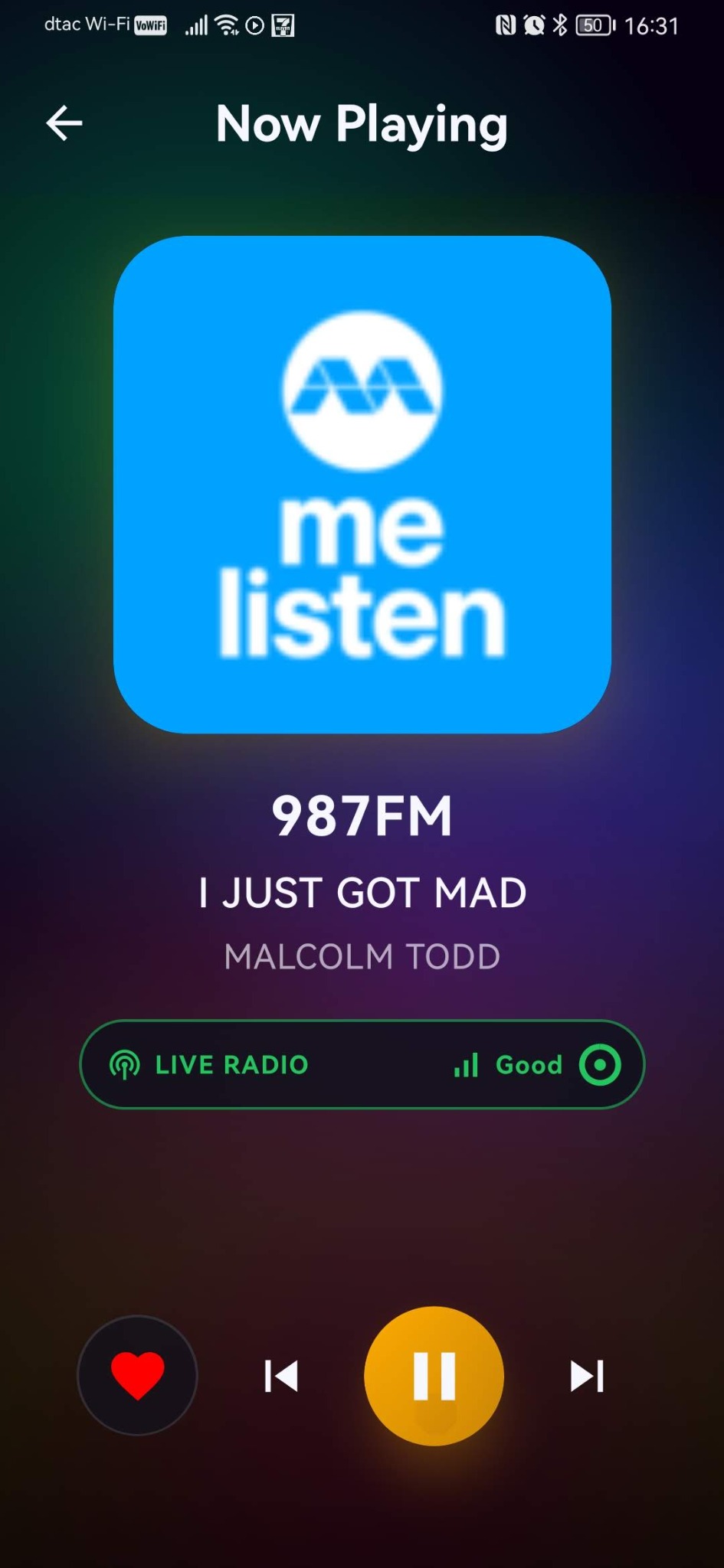
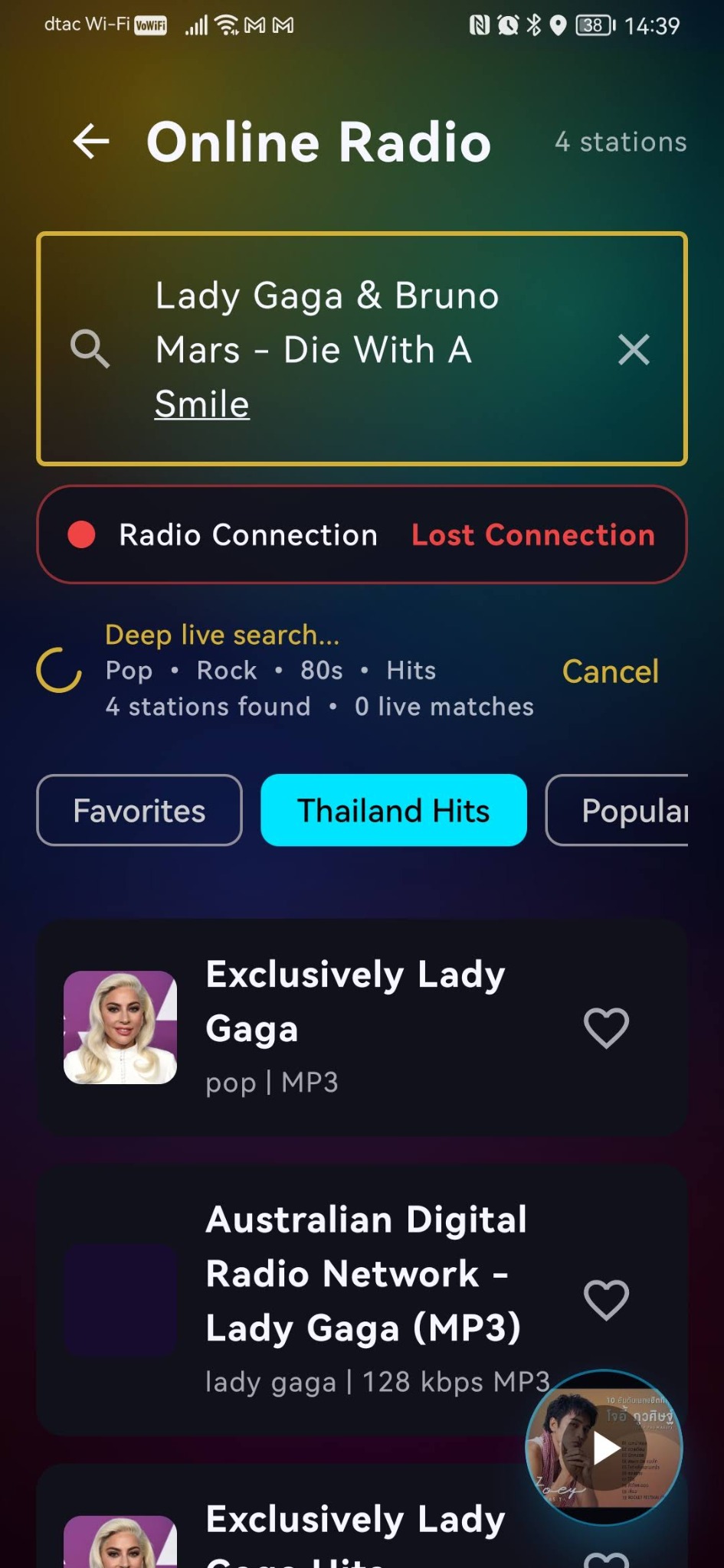
A simple getting-started section is another useful element that helps first-time visitors use the app quickly.
Use the Google Play link on this page to open the official store listing for Bugzila Car Play.
Download and install the app from Google Play to receive the official package and future updates.
Start with Local Music, browse Online Radio, save Favorites, or fine-tune sound in Audio Settings.
Try Android Auto, Google Cast, and Theme settings to shape the app around the way you like to listen.
Follow the Facebook page to receive app news, release updates, and future announcements.
Use the Bugzila Labs developer page for official identity and to check for more products or updates later.
Direct links to the main app page, the developer page, and the communication channel.
Official Google Play listing for the app.
Google Play ↗Official Google Play developer page.
Bugzila Labs ↗Official Facebook page for news and communication.
Facebook ↗Besides the basics, a good page should help users trust the app and understand what to do next.
Visitors should quickly see what the app does, who it is for, and what makes it useful.
Example screens reduce uncertainty and help people understand the interface before installing.
Download links, developer identity, and contact channels are essential for trust and support.